HubSpot Integration Setup
Connect iFax with HubSpot to send faxes directly from your contact records. Ensure functionality, compliance, and ease of use with our seamless integration.
1. Install from HubSpot
- Go to the HubSpot App Marketplace.
- Search for iFax.
- Click Install App.
- Select the HubSpot account you want to connect.
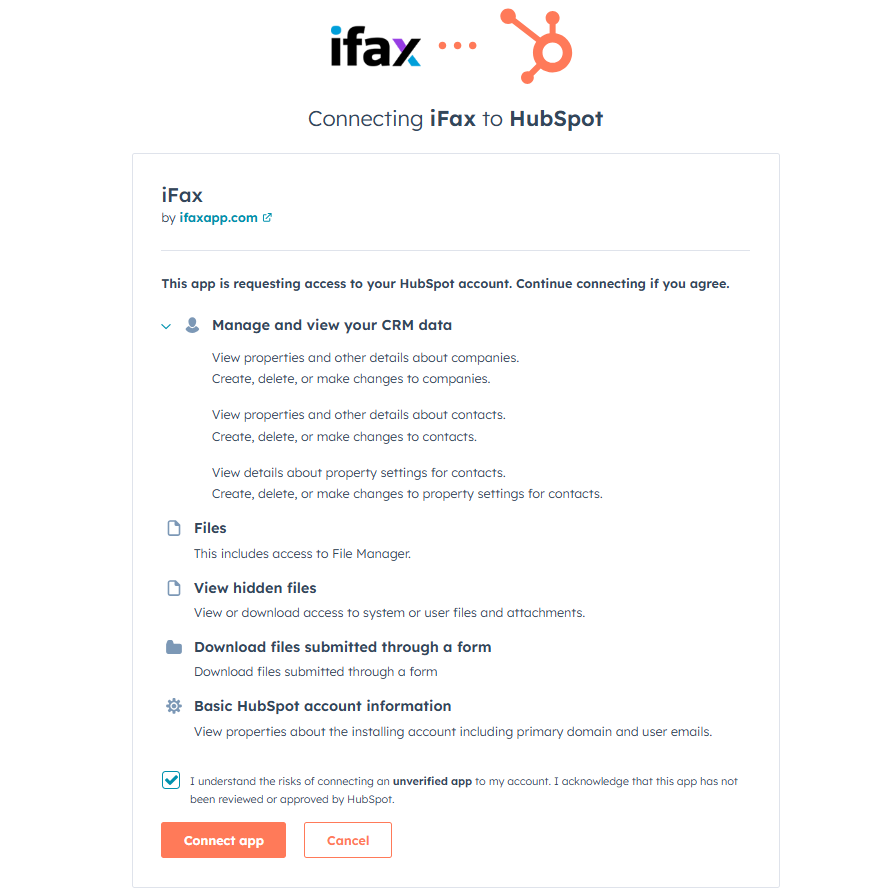
- Review the requested permissions (Contacts) and click Connect App.
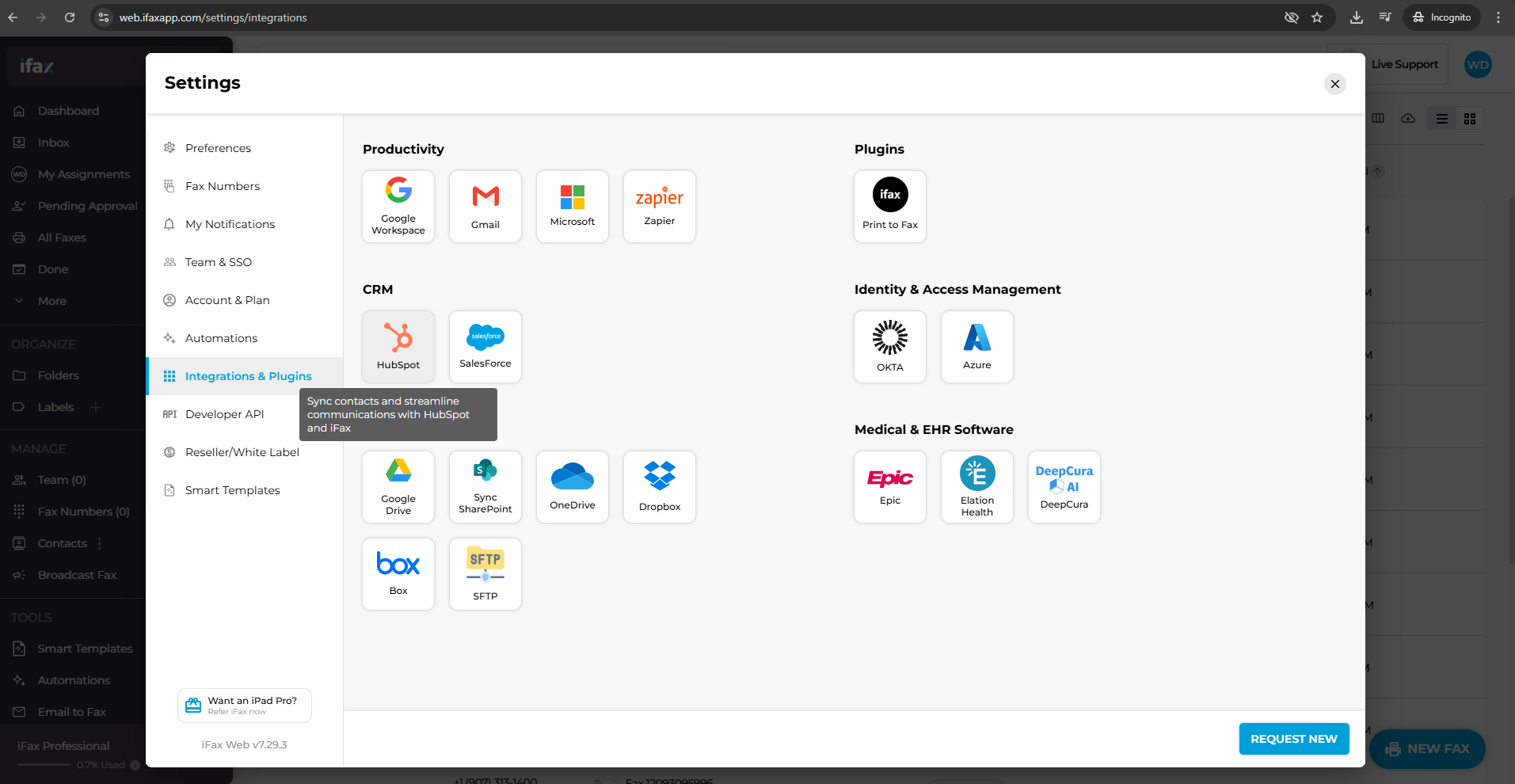
2. Install from iFax
- Navigate to Plugins in your iFax dashboard.
- Select CRM and find HubSpot.
- Click on the HubSpot integration.
- Click Connect App.
3. Connect Your Account
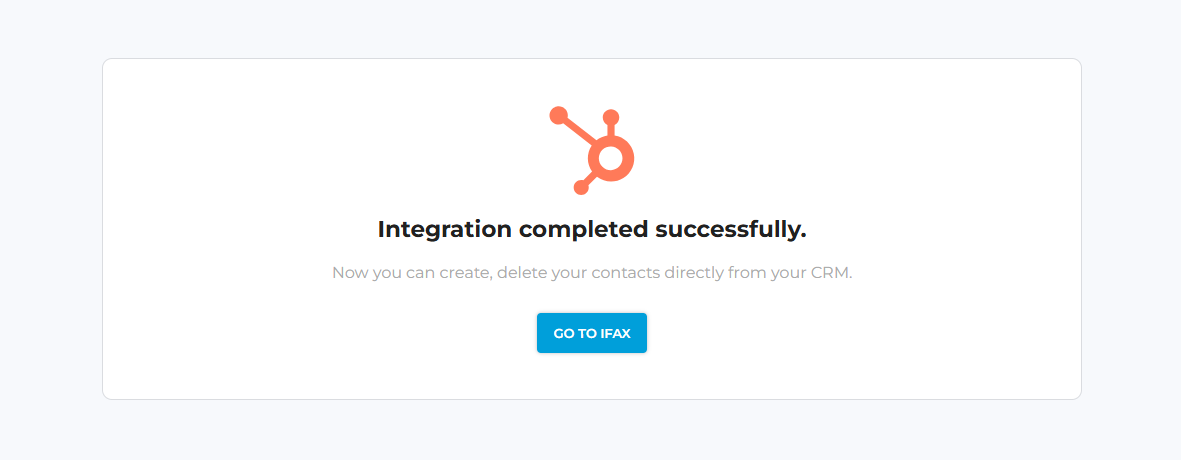
After installation, you need to authorize your iFax account.
- You will be redirected to the iFax login page.
- Log in with your iFax credentials (or create a new account).
- Authorize the connection between iFax and HubSpot.
4. Configure Card Location
To ensure the iFax card appears on your Contact records, you may need to add it to your view.
- In HubSpot, click the Settings icon (gear) in the main navigation bar.
- In the left sidebar menu, navigate to Objects > Contacts.
- Click the Record customization tab.
- Select the Default view (or specific team view).
- Click Add cards and select iFax - Send Fax.
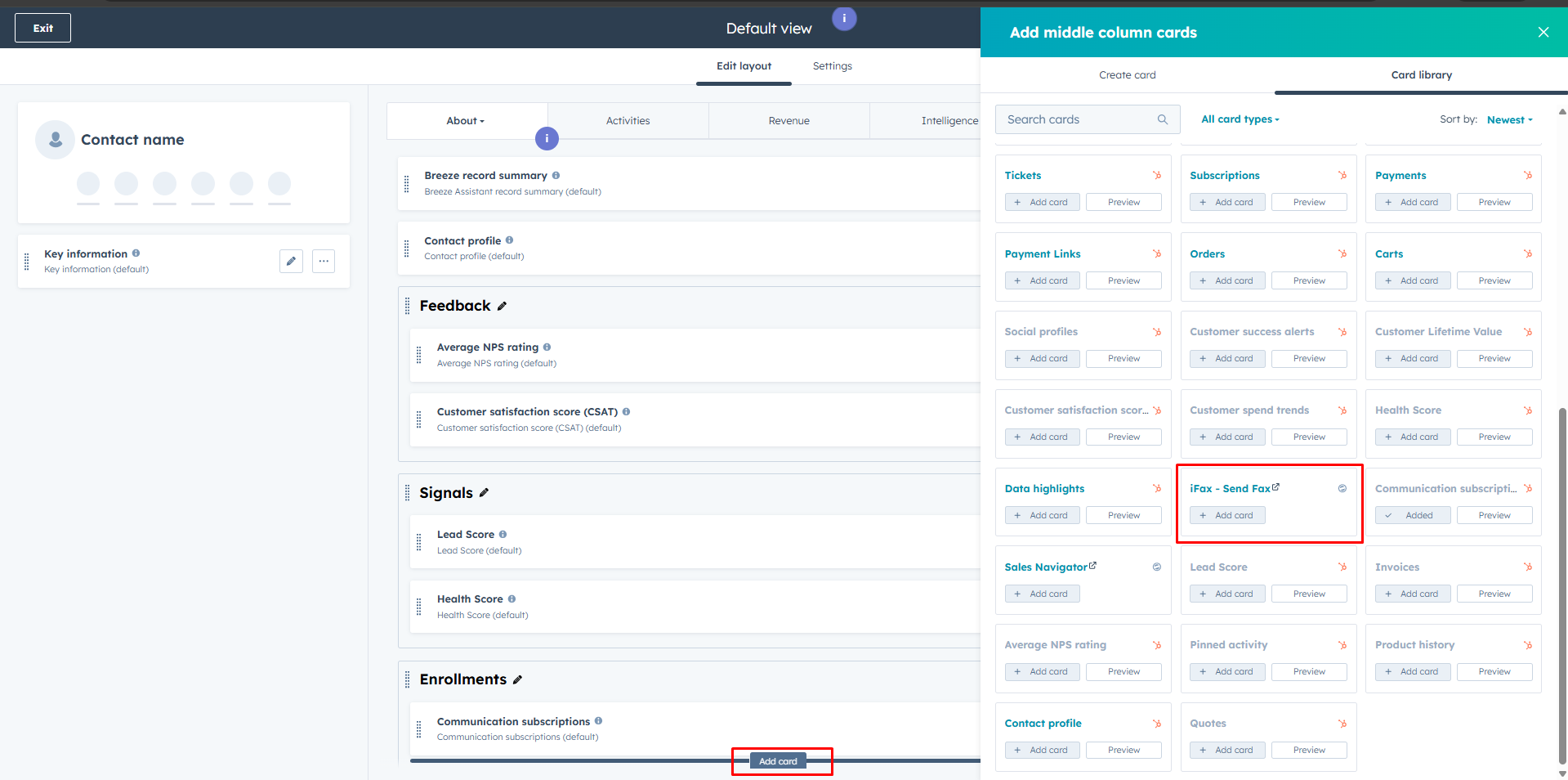
- Save your changes.
5. How to Use
Once connected, you can send faxes directly from HubSpot.
- Navigate to any Contact record in HubSpot.
- Look for the iFax CRM Card on the right sidebar (or center tab, depending on your layout).
- Click Compose Fax.
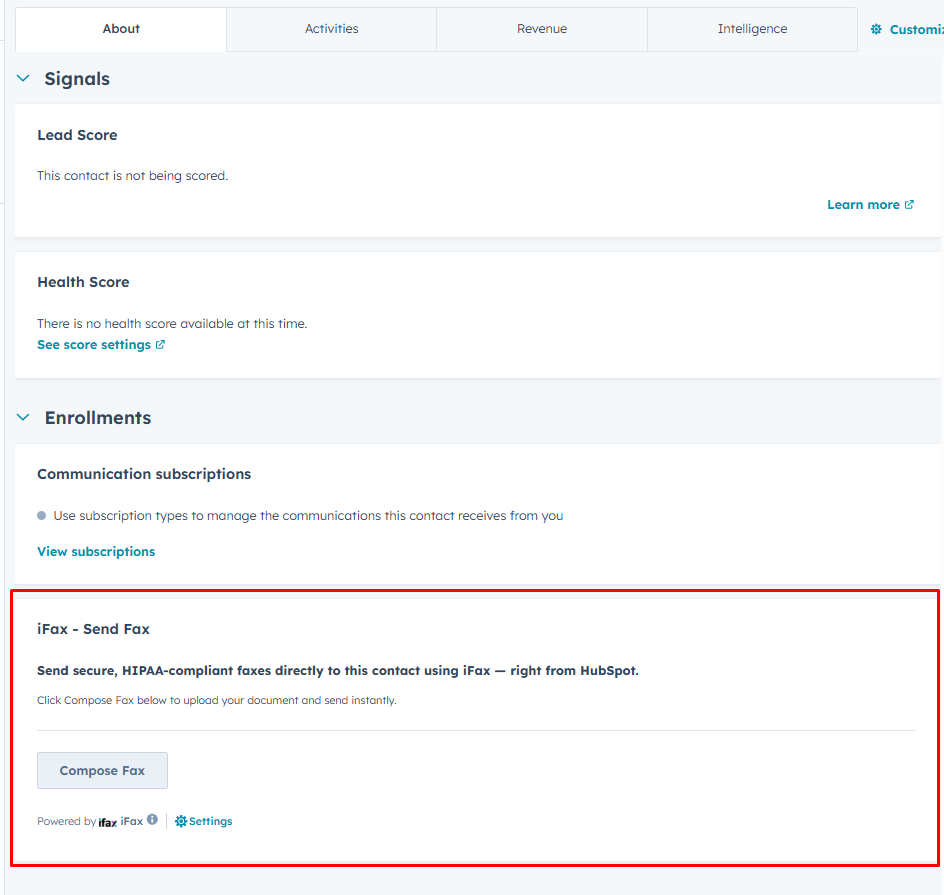
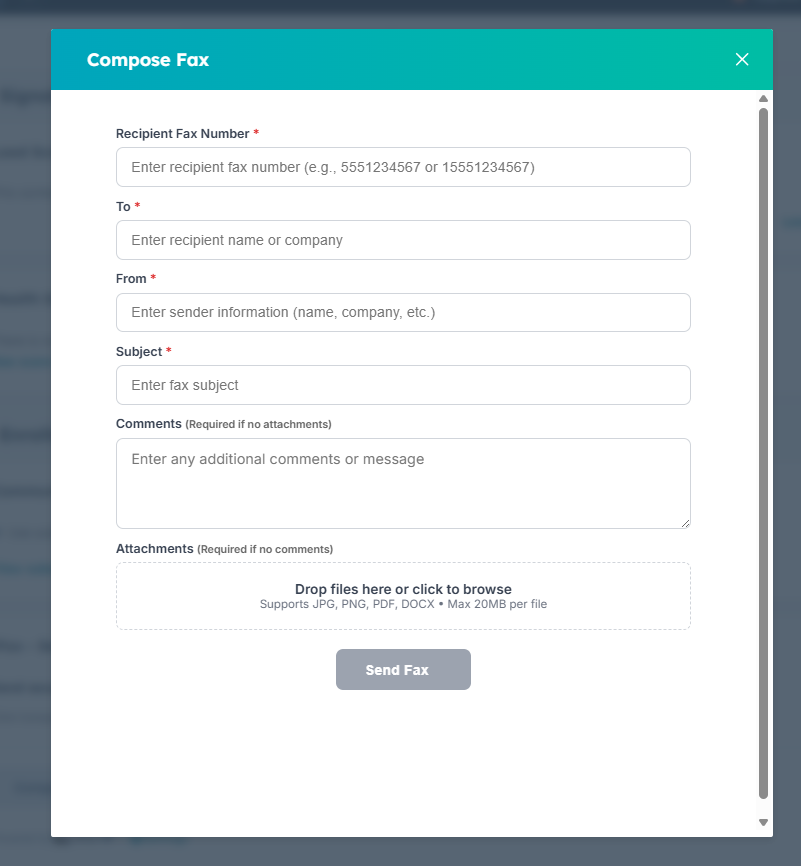
- A popup will appear allowing you to attach documents and send a secure fax to the
contact.
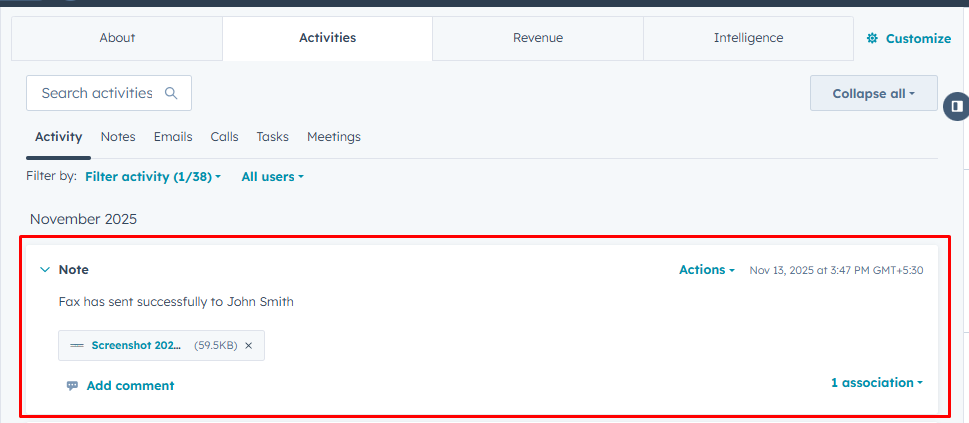
6. View Activity
- After successfully sending a fax, you can see the log in the Activity tab of the
contact record.