Simplify Faxing Across Microsoft 365 With iFax

Make Office 365 your fax powerhouse

Save hours switching between apps by integrating iFax into your Office 365 account and fax from Outlook, Word, PowerPoint, Excel, and any Windows app.

iFax seamlessly integrates with your organization’s accounts, eliminating the need for cumbersome fax infrastructure and providing you with a trusted Microsoft fax service for you and your team.

Once synced, you can fax from Outlook with email to fax and any Windows app with our print to fax feature.

Our intuitive interface allows you to access and share documents from one familiar location.
Send fax from Outlook 365

Send safe and fully encrypted faxes straight from your Outlook account with the iFax email to fax feature.

Here’s how to do it:

  1. Create an iFax account with your Outlook email
  2. Now, log in to your Microsoft 365 hub, open Outlook, and compose a new email.
  3. In the “To” field, enter [number]@ifaxapp.com. Remember to format the fax number correctly, e.g., 12345678901@ifaxapp.com.
  4. Add a Cover page subject and comment (optional).
  5. Attach the PDF or Word documents you wish to fax. You can upload the file from your computer, import it directly from OneDrive, and click send.

You will receive a notification in your mailbox confirming the successful transmission of your fax.

receive fax in outlook

Receive faxes in your Outlook inbox

With iFax’s Microsoft 365 integration, you can ensure that you won’t miss any incoming faxes.

Here’s how to configure your iFax account to receive faxes straight to your Outlook inbox:

  1. Get a new fax number or port an existing fax number
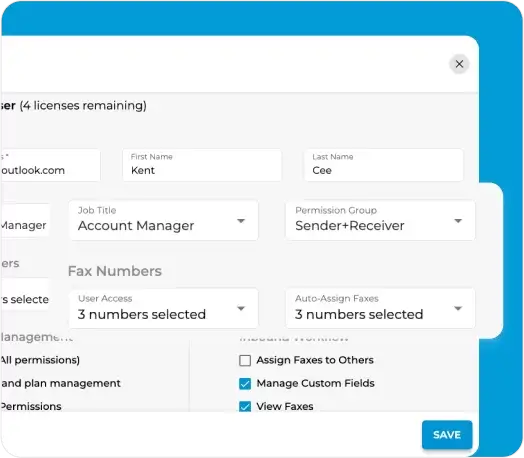
  2. From your iFax web dashboard, go to Team. Then, select the email you use on Outlook.
  3. Click Edit, then under Permission Group, choose any of the following options:
    • Receiver
    • Sender+Receiver
  4. Click Save, then go to My Notifications > Inbound and select the Email option for New Fax Received.
  5. Switch on the toggle icon below Include Fax and click Save.

Pro tip: You may send a test fax to your Microsoft 365 account by typing your own fax number in the subject field.

Sync with SharePoint for easy fax access

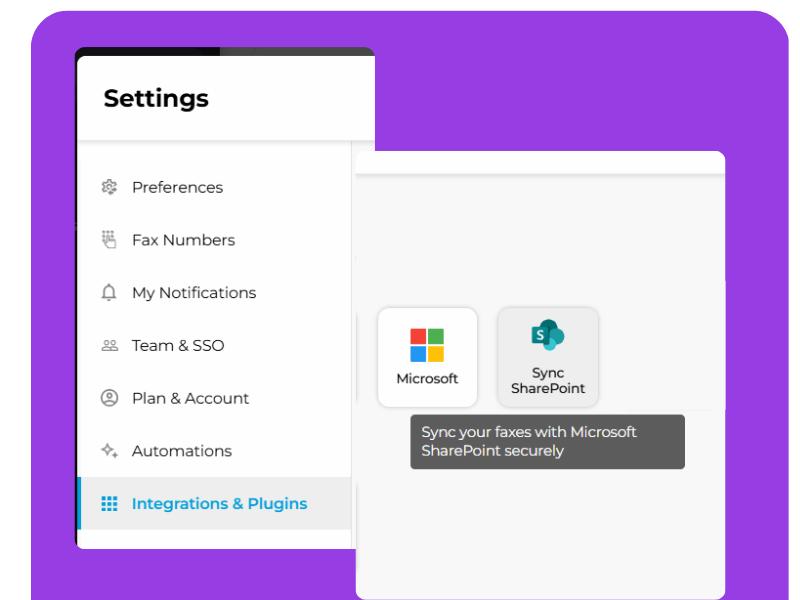
Enable SharePoint syncing within iFax without leaving the app.

Eliminate manual file transfers and enhance data security while effortlessly tracking your synced faxes in real time.

Here’s how SharePoint Sync works:

  1. From your Dashboard, go to Settings.
  2. Select Integrations & Plugins.
  3. Click the SharePoint button in the Integrations tab.
Microsoft 365 Integration

Streamlined Fax Integration for Microsoft 365 Users

How Microsoft iFax integration works

Fax from Office 365 improves efficiency with centralized communication, faster document sharing, and cloud accessibility.

Here’s a 3-step guide to how Office 365 fax integration works:

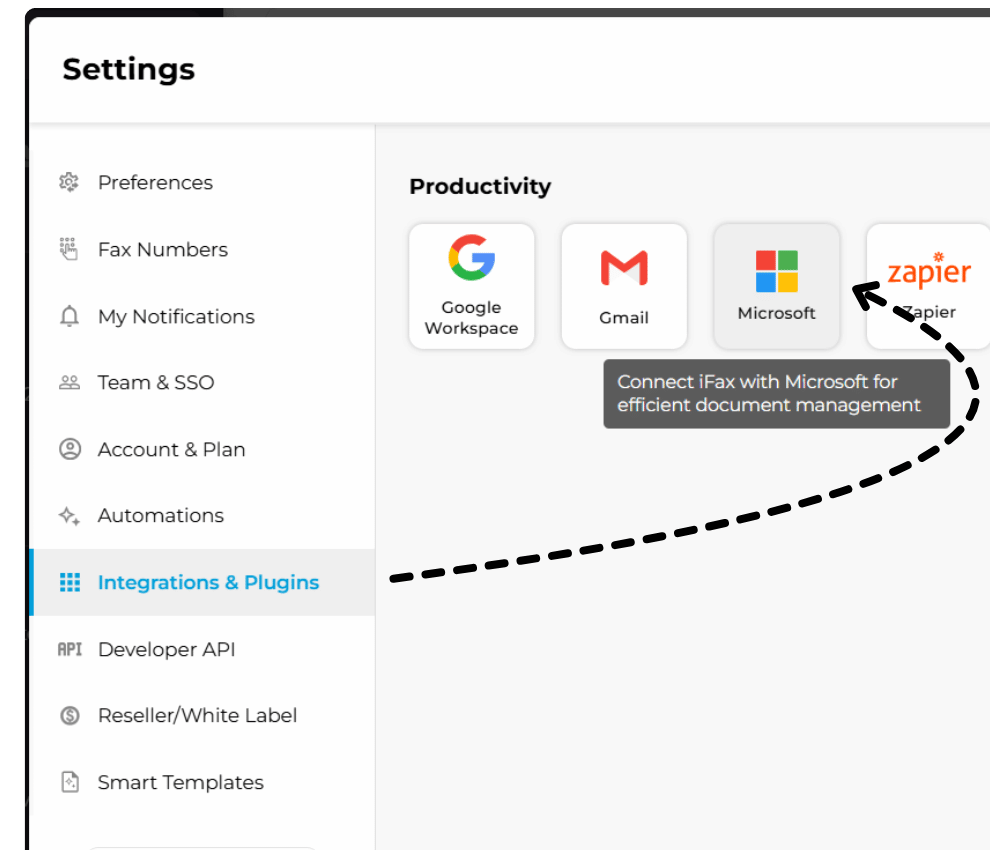
  • Step 1: Connect iFax with Microsoft
    From Settings > Integrations & Plugins, authorize the iFax integration to connect with Microsoft for efficient document management.
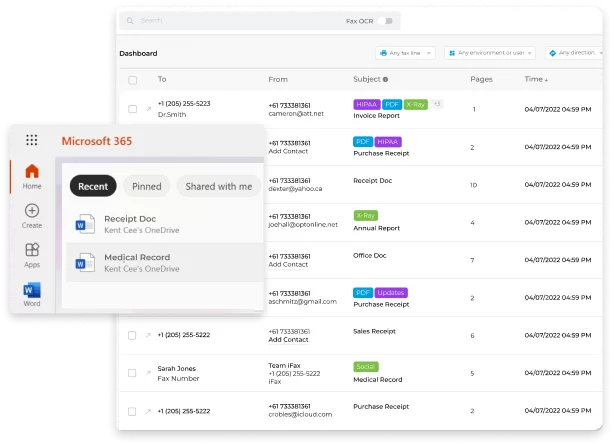
  • Step 2: Fax from Office 365 
    Select a contact, upload your document, and send it as a fax instantly through Office 365.
  • Step 3: Track Fax Activity
    Monitor fax deliveries to ensure every fax reaches the intended recipient.
How Microsoft iFax Integration Works
Start faxing from Microsoft 365 with iFax today
Streamline your organization's workflow with a secure and trusted Microsoft fax service provider.

Frequently Asked Questions About Microsoft Faxing

You can send a fax directly from your Office 365 (Microsoft 365) email using an email to fax service, such as iFax. Compose a new email, attach your document, and enter the recipient’s fax number followed by the fax service’s domain (for example, [faxnumber]@ifaxapp.com). Once you click “Send,” the system securely converts your email and attachment into a fax and delivers it to the recipient’s fax inbox.

For this method, faxing is possible without a fax machine as it’s integrated into Outlook, SharePoint, and OneDrive.

Yes. iFax secures faxes with enterprise-grade security and full compliance in mind. It uses end-to-end encryption (TLS 1.2 and AES-256) to protect faxed documents during transmission and storage. Its cloud platform is HIPAA, GLBA, and GDPR compliant, safeguarding sensitive fax data against unauthorized access.

For added security, iFax also provides audit trails, role-based access controls, and electronic signatures, allowing organizations to meet strict industry and regulatory standards.

With Microsoft iFax integration, you can fax a wide range of file types. Supported formats include PDF, DOC, DOCX, JPG, PNG, and TIFF. You can attach any of these documents directly from Outlook, OneDrive, or SharePoint when sending a fax.

This flexibility allows users to send professional documents, legal contracts, and scanned images without needing to convert them externally using other third-party tools.

No, additional software isn’t required with Office 365 faxing. iFax works entirely through the cloud and email. You fax from Microsoft 365 directly. There’s no need for complex setup, hardware, or local installations.

For businesses that prefer deeper integration, iFax also offers Fax API and Microsoft 365 add-on options, allowing seamless connection with existing workflows and CRM systems.

Arrow-up