


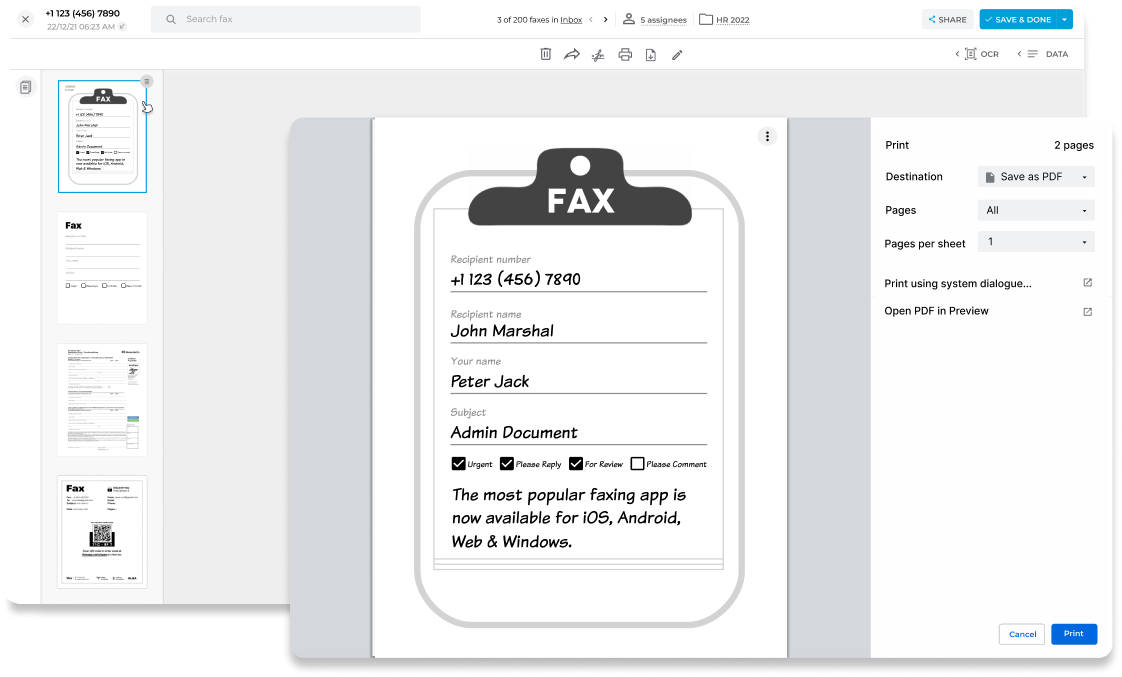
SEND
Enjoy iFax services at 50% off!
Your discount will be applied during checkout.
Complete step-by-step guide on how to fax from printers with fax and scan functions.
Yes, most all-in-one printers can fax if they include a built-in fax modem and a phone line port. Check for a Fax button or a port labeled LINE to confirm fax capability.
If your printer isn’t connected to a phone line, you can still send faxes over Wi-Fi using an online fax service like iFax.
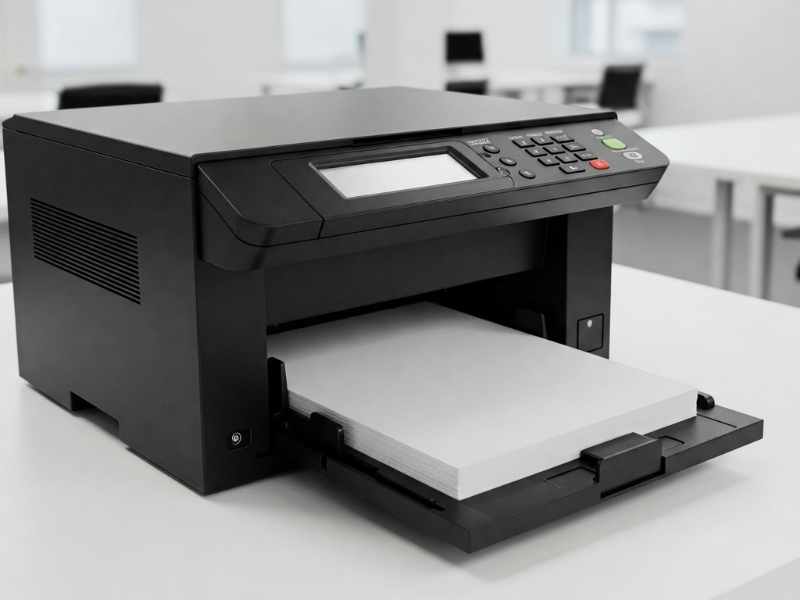
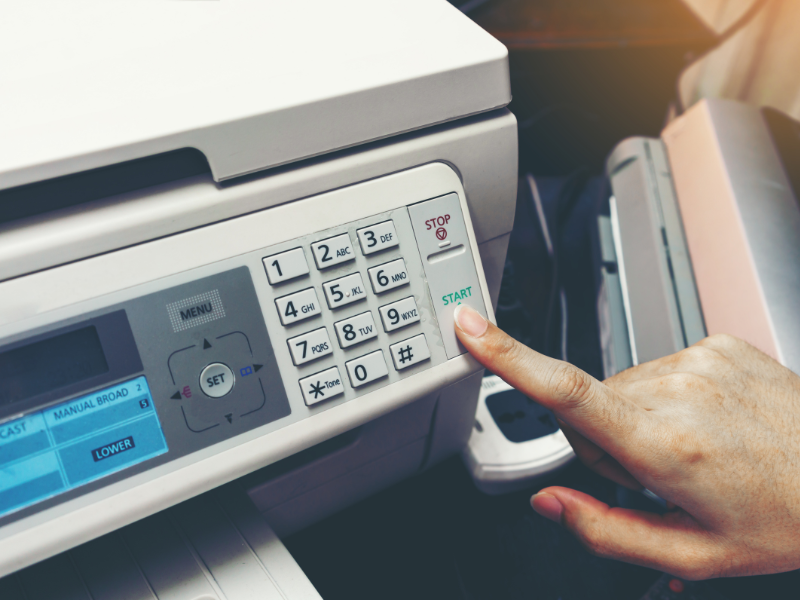
To check if your printer can fax, start by looking at its buttons or menu. The best way to find out is to look for a “Fax” button or “Send Fax” option on the touchscreen. Many “All-in-One” or “Multifunction” printers have this feature, but not all of them do, so it helps to confirm.
Next, check the back of the printer for a phone line port labeled “Line” or “LINE IN”. If it’s missing, the printer can’t fax. You can also search for the printer’s model online and review its specifications. If your printer cannot fax, consider using an online fax service as an alternative.
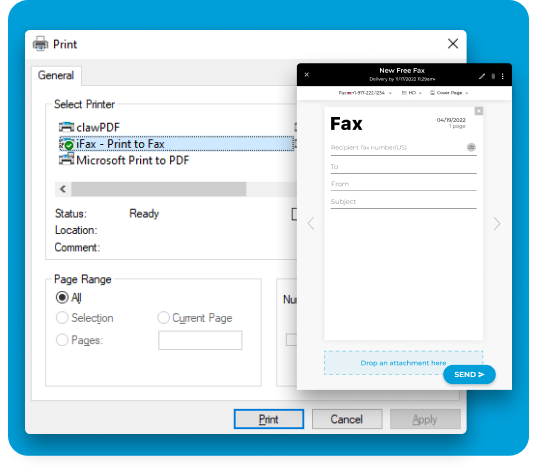
iFax’s Print to Fax driver lets your Windows 11, 10, 7, and XP computer send faxes via the print function. Here are the steps on how to set it up on your desktop or laptop:


 Effortless Faxing
There’s no need for a printer or scanner. Fax without a fax machine or landline and enjoy the flexibility of faxing from any device, whether it’s a computer, phone, or tablet.
Automated Workflows
Streamline faxing by automatically routing, converting, and delivering faxes exactly where they need to go. Save time, reduce errors, and keep your team focused on what matters.
Private and Secure
Keep sensitive faxes protected at every step. iFax ensures your documents are encrypted, confidential, and compliant, giving you peace of mind for every send.
2025 Complete Guide
Use your Mac computer or Windows desktop to send a fax quickly, while tracking its status in real-time using notifications and delivery confirmations.
2025 Complete Guide
Use your existing Gmail, Outlook, or Yahoo Mail account to send and receive faxes of PDFs or Word documents. It’s like sending an email, but to a fax number.
2025 Complete Guide
Transform your iPhone, iPad, or Android phone into a fax-capable device that works anywhere. It’s also easier to operate than figuring out how to send a fax from a printer.
How to Send a Fax on a Printer FAQs
Printers labeled as all-in-one or MFP (multifunction printers) typically support faxing. These devices combine printing, scanning, copying, and faxing in a single machine. Popular models from brands like HP, Brother, Canon, and Epson often include fax capabilities. However, it’s essential to check the specifications for features like telephone line support and speed dial options.
For businesses or corporate offices that frequently send faxes, a dedicated fax-ready printer is the more reliable and suitable choice.
Yes, some modern printers allow faxing without a traditional landline by using Internet fax services or VoIP-compatible faxing. Internet-based faxing lets you send documents directly from your printer to an online fax service, which then delivers them to the recipient. This approach is convenient for offices without an analog phone line and works with services like iFax. It’s always best to check whether your printer supports wireless faxing or Internet faxing before making the purchase.
Many Epson all-in-one printers come with fax capabilities, especially models designed for home offices and small businesses. For example, Epson’s WorkForce series often features models that combine fax, scan, copy, and print functions. It’s crucial to verify that the model supports faxing over a phone line or via an Internet fax service, as not all Epson printers have built-in fax hardware.
The best printer for faxing depends on your needs:
Yes, you can fax over the Internet using online fax services that integrate with your printer. Many modern printers have Scan to Email features, which you can also use to send faxes via email. This method eliminates the need for a traditional phone line, allows remote faxing, and supports PDF, Word, and other document formats.
Online fax services like iFax provide apps and APIs that make Internet faxing simple and secure.