


How to create your broadcast list
💡 If you’d like to bulk upload a fax broadcast list, check our guide here.
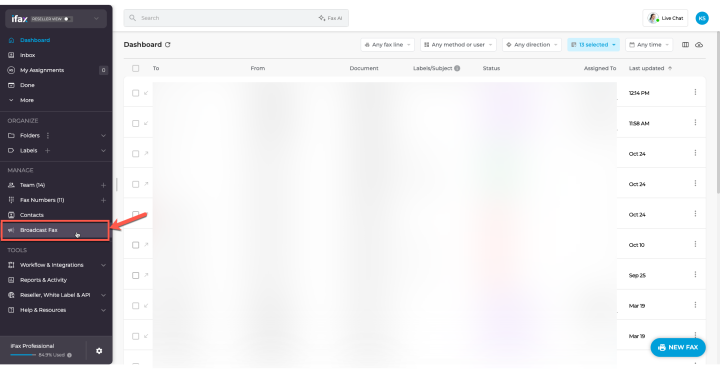
- In the left navigation bar, click Broadcast Fax.
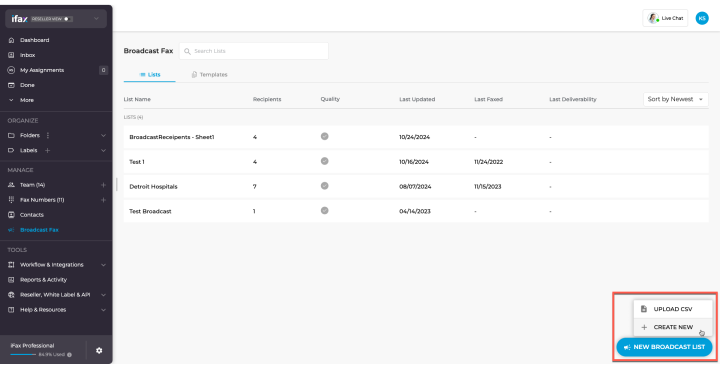
- In the bottom right, select New Broadcast List > Create New.
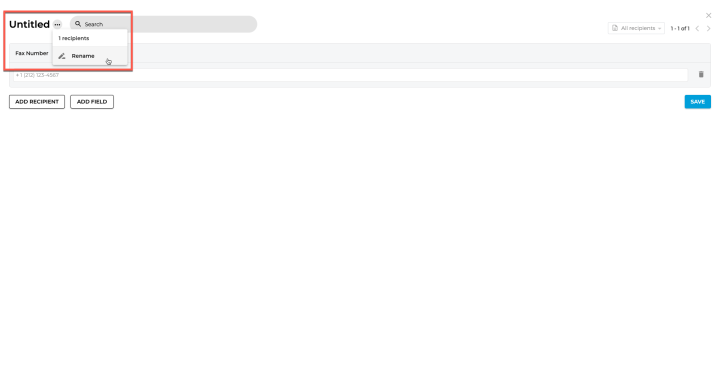
- To start, on the top left, click the three dots (…) > Rename to rename your broadcast list and hit Enter to save.
- Add fax numbers to your broadcast list by clicking Add Recipient and entering each fax number.
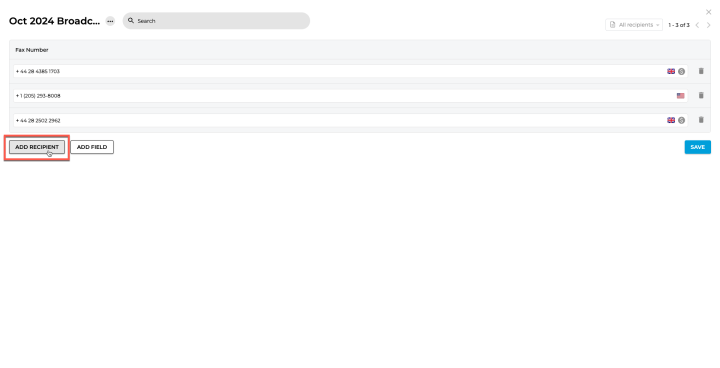
- The system will automatically tag the country and display estimated costs if it’s a high-cost destination. Hover over the $ icon to see the price.
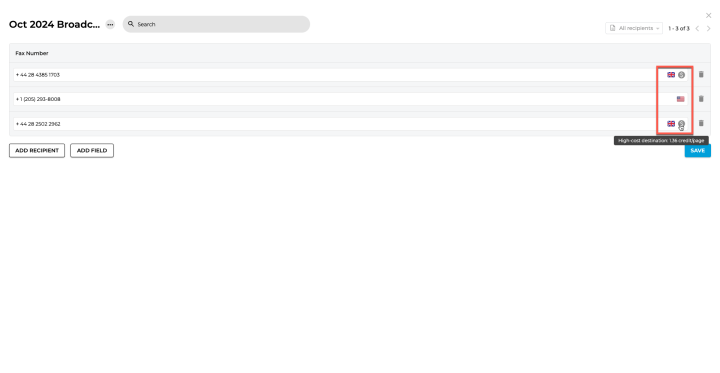
- The system will automatically tag the country and display estimated costs if it’s a high-cost destination. Hover over the $ icon to see the price.
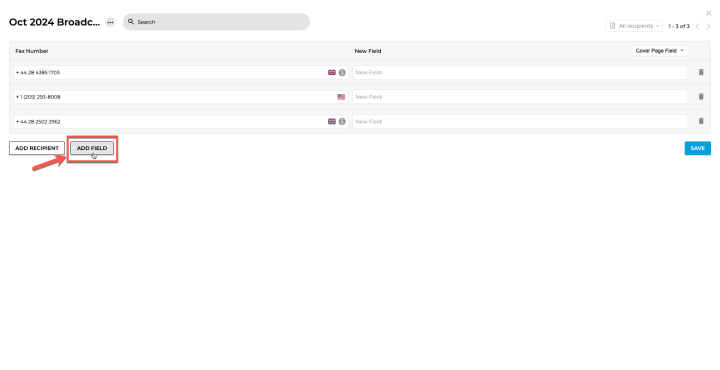
- To add custom fields for dynamic information in the fax, click Add Field.
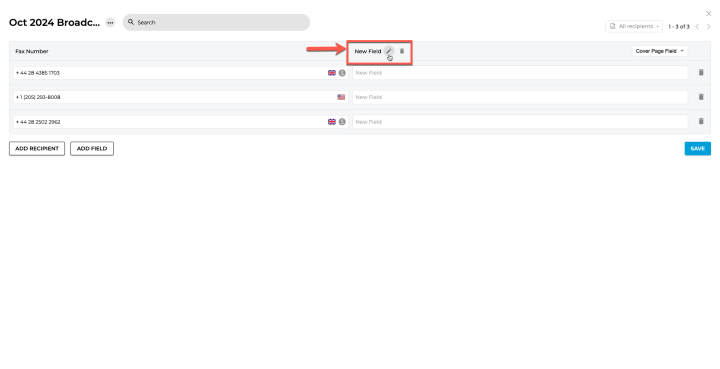
- Rename fields by hovering over New Field and clicking the pen icon.
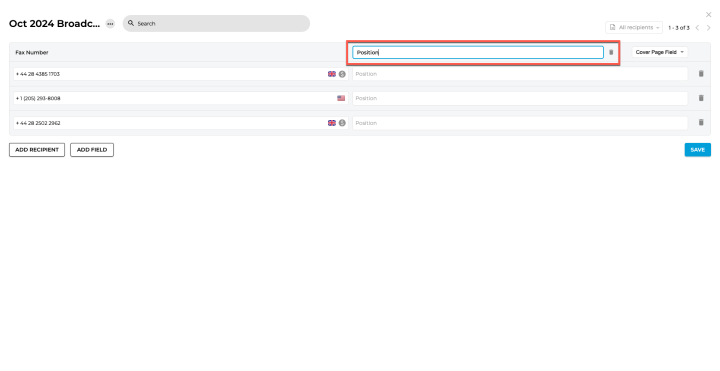
- Type the custom field name and press Enter.
- Rename fields by hovering over New Field and clicking the pen icon.
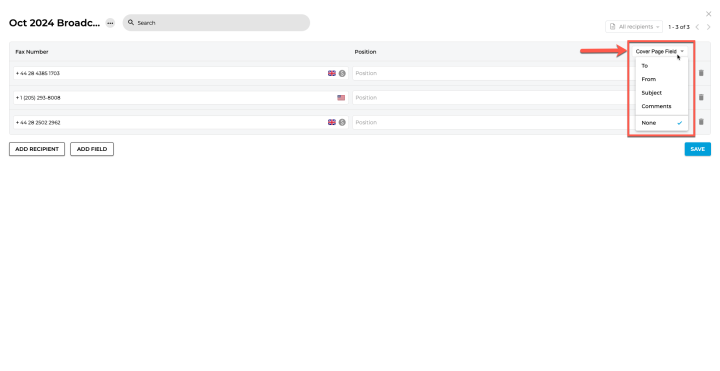
- Use the dropdown next to each field to assign custom fields like To, From, Subject or Comments. By default, fields are set to “None.”
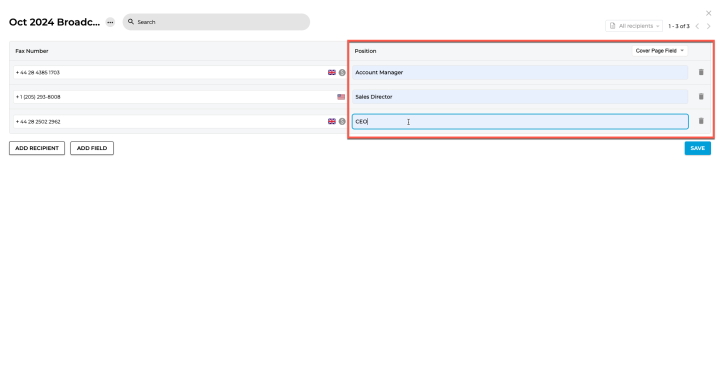
- Enter the values for these custom fields.
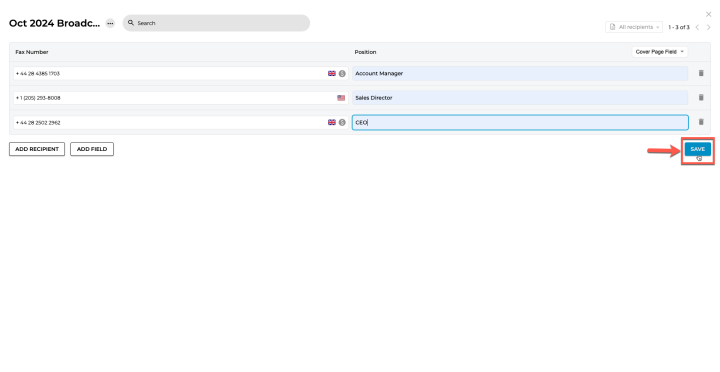
- Once ready, click Save.
How to send a fax from the broadcast list view
💡 See our guide in sending a fax here.
- In the left navigation bar, click Broadcast Fax to see your broadcasts lists.
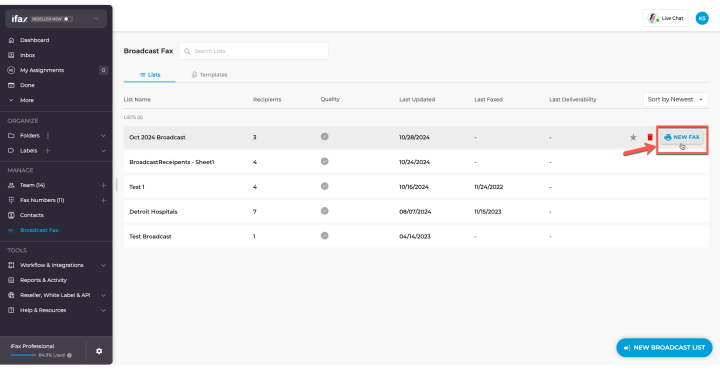
- Hover over the broadcast list you want to use and click New Fax.
- The recipient field in the new fax window will auto-populate with your broadcast list.
- Custom fields for To, From, Subject, and Comments will auto-fill with placeholders, which will dynamically update when sending the fax.
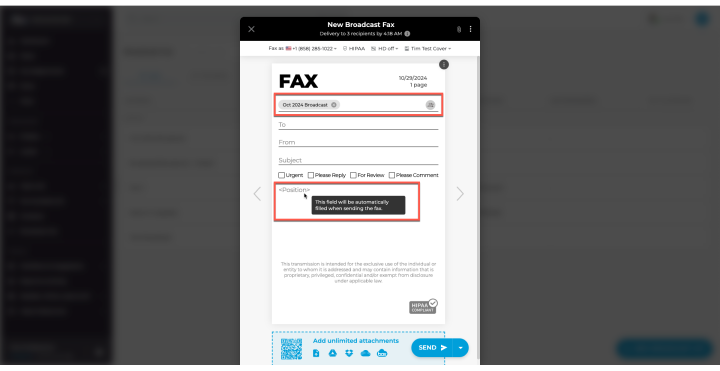
- The recipient field in the new fax window will auto-populate with your broadcast list.
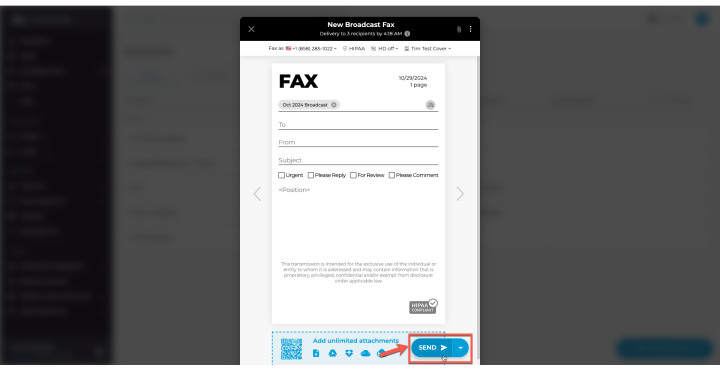
- When you’re ready, click Send.
How to use the broadcast list from the Dashboard
💡 See our guide in sending a fax here.
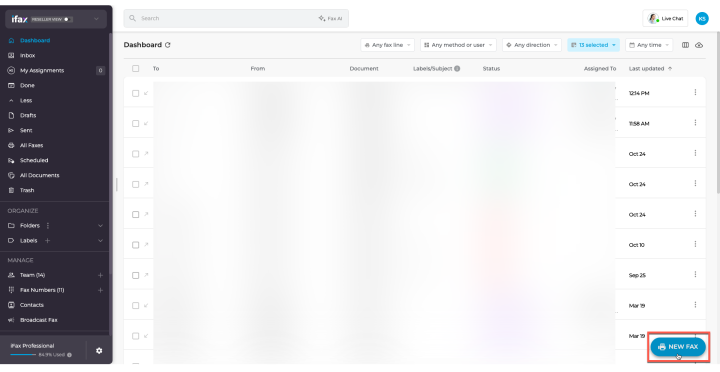
- In the iFax dashboard, click the New Fax button in the bottom right corner to start a new fax.
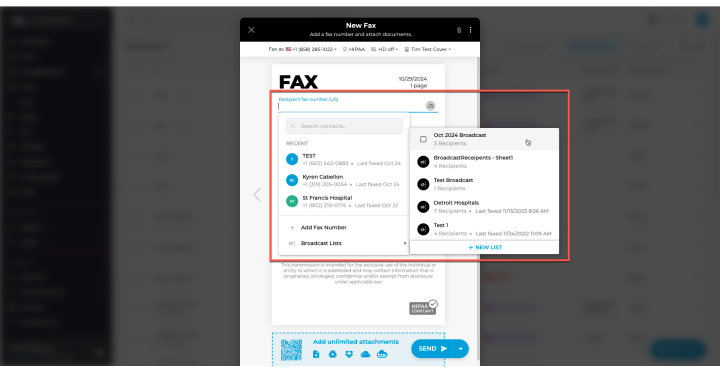
- In the recipient dropdown, hover over Broadcast Lists and select the broadcast list(s) you want to send to.
- When ready, click Send.
If you have any questions or need further assistance, please feel free to reach out. We’re here to help! Thanks for choosing iFax. ❤️