


How to Send a Fax From Phone
Complete step-by-step guide on how to fax from phone using iFax’s mobile fax app, via email, or online. Transform your phone into a portable fax office.
Enjoy iFax services at 50% off!
Your discount will be applied during checkout.
Complete step-by-step guide on how to fax from phone using iFax’s mobile fax app, via email, or online. Transform your phone into a portable fax office.
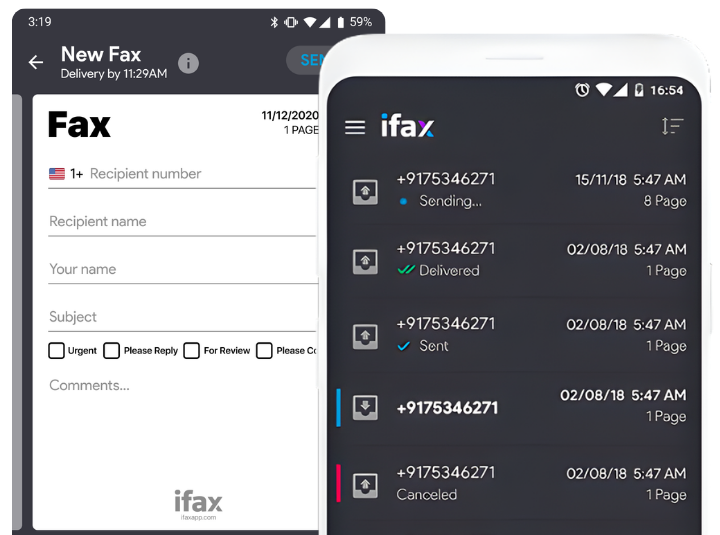
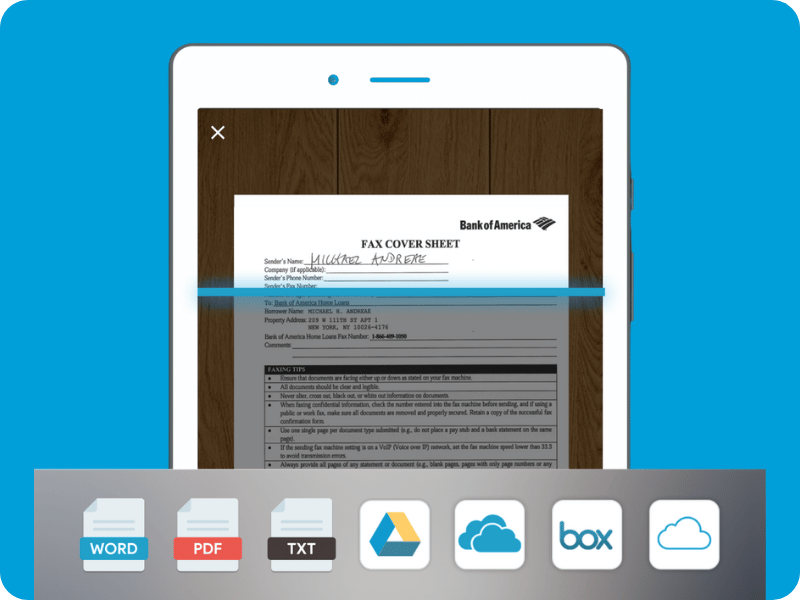
Use iFax on your phone to send 10 free faxes or get its full free Pro access. It’s a 3-day trial of all its advanced faxing features, including AI-powered workflows and integrations via API and Zapier.


 On-the-go convenience
Experience mobile faxing that turns your phone into a modern faxing powerhouse. It works without a fax machine and includes all the necessary tools to send secure faxes from anywhere.
Works without a phone line
No more asking questions like “Can I send a fax from my phone?” Just your iPhone or Android phone and an iFax account, and that’s it—no need for phone lines. Fax freely from any cell phone or mobile device anytime.
Fax faster and smarter
Cut your faxing time with modern, mobile-friendly features designed to streamline your faxing process. Scan documents using your phone camera and never wait in line at a machine again.
How-to
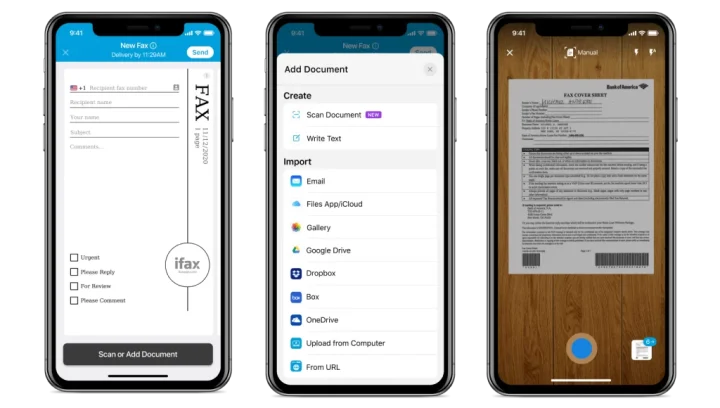
Learn how to fax from your iPhone with or without using an app. Use it to fax documents by scanning, attaching, and sending faxes securely with just a few taps.
How-to
Learn how to send a fax from your Android device to any local or international fax recipient. Skip the hassle of manual faxing and complicated setups.
How-to
Discover how you can fax using your iPad, Android tablet, computer, and other devices with Internet access. Instantly send a fax using any device you choose.
Sending a Fax From a Phone FAQs
Yes, you can send a fax directly from your phone using PDFs, images, or scans. There are three easy ways to do it without a fax machine, and it works on iOS, Android, and other mobile devices.
The easiest option is to use an online fax service, which utilizes your phone’s camera to scan, attach, and send documents as a fax at any time.
No, without a dedicated fax app or online service, your phone alone cannot transmit a fax directly over the telephone network. However, you can use workarounds, such as connecting your phone to a multifunction printer with fax capabilities or sending documents via email to a recipient who has a fax machine.
Yes, you can send a fax directly from your cell phone or smartphone, even without a traditional fax machine. Modern technology enables users to send faxes from mobile devices via mobile fax services or email-to-fax solutions. Using a phone with Internet access, you can send documents securely to any local or international fax number.
How to fax from phones like Android and iPhone:
Using your phone to fax is convenient for businesses that need on-the-go document transmission. Online fax apps like iFax offer HIPAA compliance and encryption, ensuring your data remains protected.
You can electronically sign documents on your phone and send them via fax using a mobile fax app or a web fax service. Most apps allow you to annotate, sign, and submit documents without printing.
Here’s a quick overview of how it works:
This method is particularly useful when you need to fax contracts, agreements, and even healthcare documents. Compliant faxing services, such as iFax, also provide fax confirmation receipts for compliance purposes.
You can send a fax from your phone without installing a dedicated app by using existing apps, email, or a mobile browser. These methods don’t require a dedicated app, providing you with the option to fax documents quickly without the added hassle of setting up and configuring a new app.
The key is to choose the best way to fax using your phone that would satisfy your faxing requirements for convenience, compliance, and security.