Below is a complete guide on how to fax from a phone, specifically an Android, works with or without a mobile app. You can also fax for free straight from your phone or tablet.
Knowing how to send a fax from an Android device removes the need for a fax machine, a phone line, or bulky office hardware. It’s a fast and convenient way to send, receive, and track faxes anytime, anywhere.
Table of Contents
Faxing From Android: Benefits, Cost, Methods
The main benefit of faxing from your Android device is mobility. You can fax documents while traveling, working remotely, or even while at home — all without needing a physical machine. Android devices support both app-based and app-free faxing options, giving you full flexibility.
In terms of cost, mobile faxing is significantly more affordable than maintaining a fax machine tied to an office location. There’s no monthly phone line fee, and you don’t need ink, toner, or paper.
While there are several methods to fax using Android, they all fall into two categories:
- Using a dedicated fax app
- Sending a fax without installing an app
To learn other faxing options for any device, you may also refer to our full guide: How to Send a Fax.
How to Send a Fax From Android Without App
Option 1: Using iFax’s Web Fax Service
- On your Android device, open Chrome, Firefox, Brave, or your preferred mobile browser.
- Go to web.ifaxapp.com and log in to your iFax account.
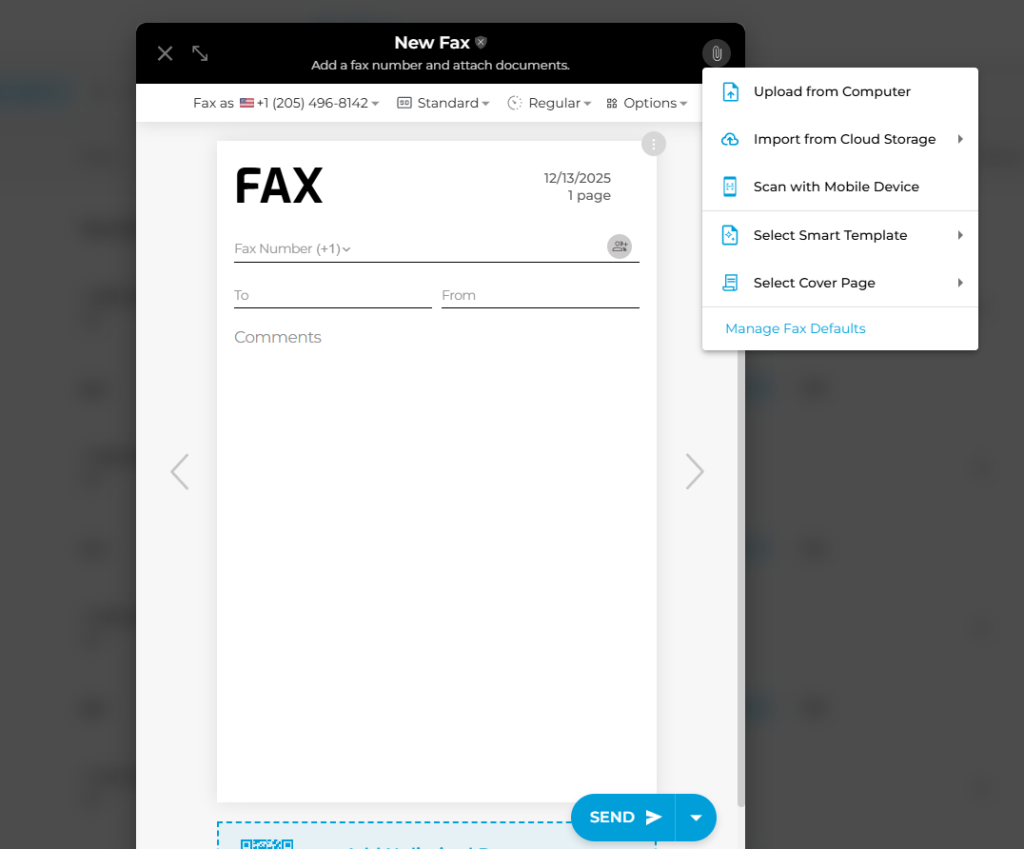
- From your fax dashboard, tap New Fax.
- Enter your recipient’s fax number in the correct format. Include the plus sign (+), country code, and area code.
- Attach your documents. iFax supports multiple file formats, including PDF, DOC, DOCX, JPG, PNG, and TIFF.
- Tap Send to transmit the fax instantly. You may also choose Schedule Send to deliver your fax at a specific time and date.
- Wait for the email notification confirming successful delivery. You can also track the fax status directly from the dashboard.
How to Send a Fax From Android Without App (Free)
iFax offers a 3-day free full-access trial to its Pro Plan, letting you fax without page limits or extra fees — all without installing an app.
Option 2: Fax From Android Using the Built-In Camera (Scan & Upload)
- Open the Camera app on your Android phone.
- Capture a clear photo of your document.
- Save it to your device’s gallery or files folder.
- Open your browser and go to web.ifaxapp.com.
- Tap New Fax → Attach File.
- Choose the scanned image from your Files or Gallery.
- Enter the recipient’s fax number and tap Send.
This method is ideal if you simply need to scan a document quickly without downloading any additional tools.
Option 3: Fax From Cloud Storage (Google Drive, Dropbox, OneDrive)
- On your Android browser, log in to iFax via web.ifaxapp.com.
- Tap New Fax.
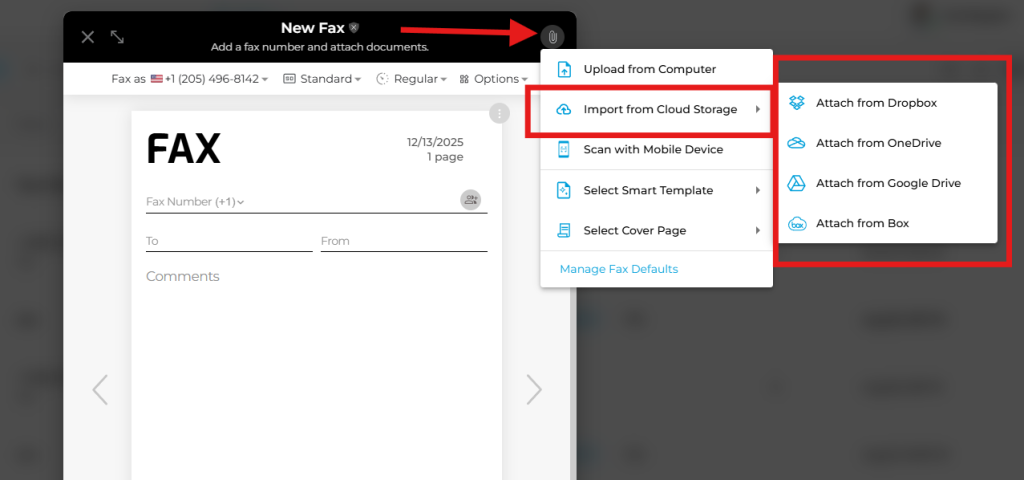
- Click the paperclip or Attach File icon.
- Select Upload from Cloud Storage.
- Choose the file from Google Drive, Dropbox, OneDrive, or Box.
- Enter the recipient’s fax number.
- Tap Send, or schedule the fax for later delivery.
Option 4: Fax Using Scan With Mobile (via QR Code)
- Open iFax Web Fax on another device such as your laptop, desktop, or tablet.
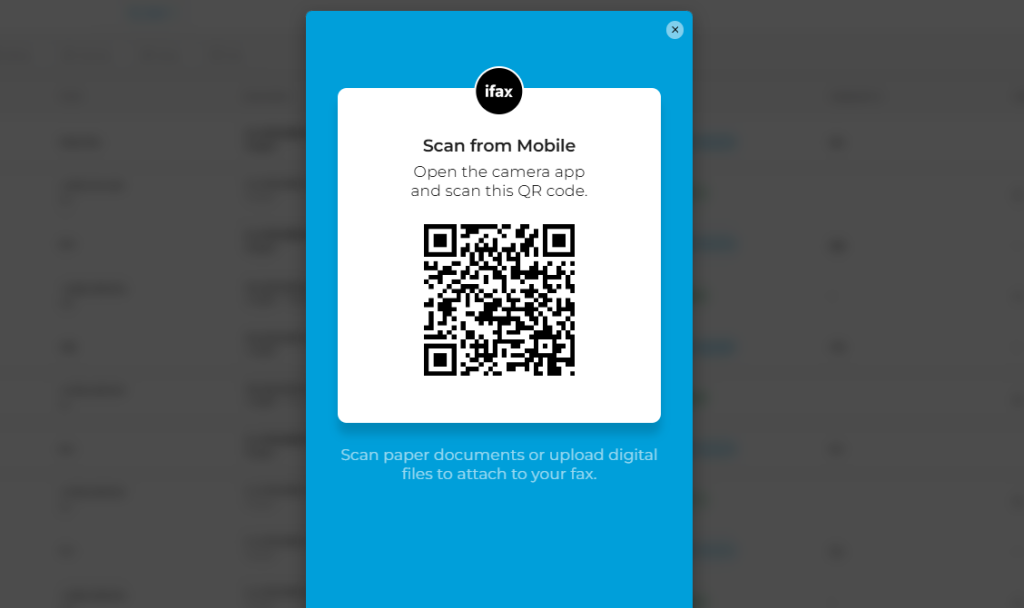
- Create a New Fax and click the Scan With Mobile Device option.
- A QR code will appear on the screen.
- On your Android phone, open the Camera and scan the QR code.
- Capture a new document or select an existing file from your device.
- Tap Add to Fax. Your scanned document will automatically upload.
- Complete the fax and hit Send.
This option is helpful if you want to use your Android phone for scanning but prefer preparing the fax on a larger screen.
Option 5: Fax From Android via Email
- Sign up for an iFax account and register the email address you will be faxing from.
- Open your email app on Android — Gmail, Outlook, Samsung Email, etc.
- Tap Compose.
- In the To field, enter the fax number + @ifaxapp.com. Example: 2121234567@ifaxapp.com
- Attach the document you want to fax.
- Send the email.
- Wait for delivery confirmation in your inbox.
This method is ideal for users who want to manage faxes directly inside their email workspace.
How to Send a Fax on Android Using a Fax App
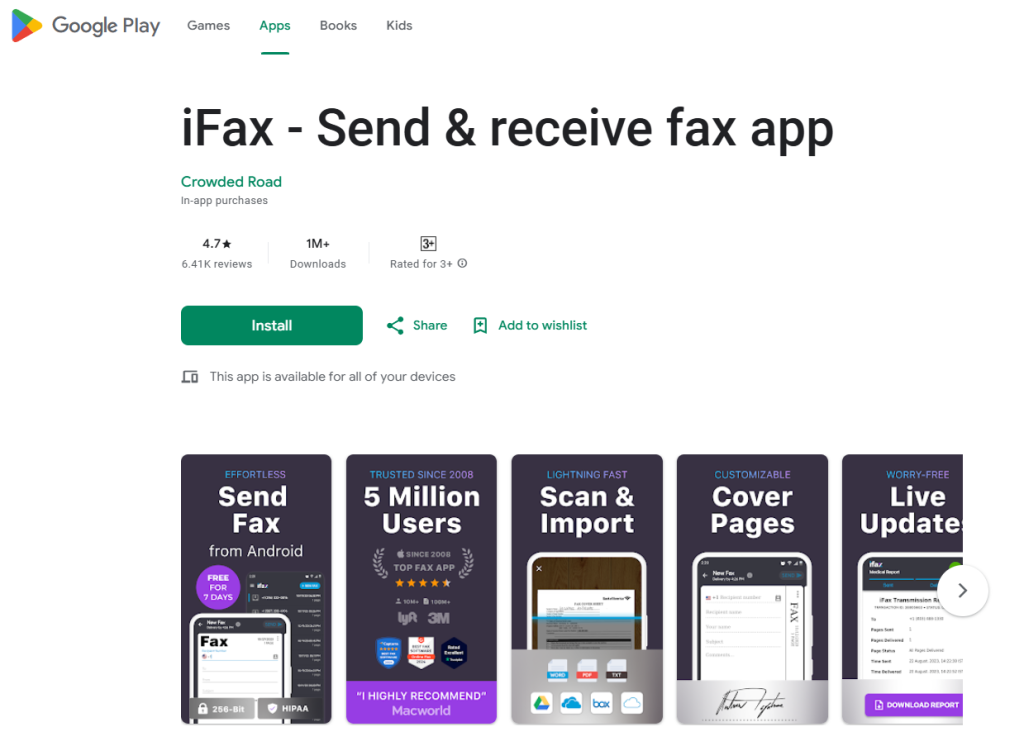
Option 6: Using the iFax Android App
If you prefer using a dedicated app, sending a fax from Android is even faster:
- Go to the Google Play Store and download the iFax app for Android. Installation is free and requires no setup fee.
- Open the app and sign in to your iFax account.
- Tap New Fax.
- Enter your recipient’s fax number.
- Add a cover page or use one of iFax’s built-in smart fax templates.
- Attach documents from your device, cloud storage, or scan using your camera.
- Tap Send for instant delivery.
The iFax Android app also supports receiving faxes, managing folders, adding e-signatures, and viewing delivery receipts — all in one place.
The Best Way to Send a Fax From Android in 2026
Now that you’ve learned the different ways to fax from Android — with or without an app — you can choose the method that fits your needs. Whether you’re faxing via browser, cloud storage, email, or a dedicated fax app, your Android device can replace a traditional fax machine entirely.
Frequently Asked Questions
Does Android have a built-in fax feature?
No. Android phones do not include built-in fax capabilities. While you can scan documents using the camera or Files app, you still need a fax service such as iFax to transmit documents securely.
Is it easy to send a fax from an Android phone?
Yes. Fax apps like iFax make the process quick and intuitive. You can scan documents, attach files, add a cover page, and send them within minutes. Delivery confirmations and tracking are available directly on your device.
Is it safe to fax from an Android device?
Faxing from Android can be secure as long as you use a reliable service. iFax uses military-grade encryption and follows data protection standards, including HIPAA, making it safe for transmitting confidential information.
What is the safest fax app for Android?
The safest apps include features like encryption, secure cloud storage, and HIPAA compliance. iFax is widely recognized for its security-focused design and is used by hospitals, law firms, and enterprises worldwide.
Can I send a fax from my email on Android?
Yes. iFax allows you to fax documents via email using your Android device. Simply send an email attachment to the recipient’s fax number followed by @ifaxapp.com.