
Faxing from a Mac is easy—and you don’t need a fax machine or a phone line to do it. With today’s secure digital faxing options, you can send, receive, and sign faxes directly from your Mac using online tools and built-in features.
In this guide, we’ll show you how to fax from a Mac in six simple steps, explain the different methods available, and help you choose the option that best fits your workflow—whether you’re faxing from home or managing business documents in the office.
Download iFax for Mac. No printer needed.
Table of Contents
How to Fax from Mac
Faxing from a Mac—or even a MacBook or any Mac computer—no longer requires a fax machine, phone line, or manual setup. While traditional faxing involves hardware, paper, and ongoing maintenance, modern solutions let you send a fax from Mac securely using online fax services, dedicated Mac apps, or built-in macOS features.
Below are the most effective ways to fax from a MacBook or Mac computer, starting with the easiest and most commonly used options.
How to Send a Fax from Mac Using an Online Fax Service (Web-Based)
One of the simplest ways to fax from Mac is through a web-based online fax service. This option works entirely in your browser and does not require installing any software.
How it works:
- Open your browser on your Mac or MacBook and sign in to an online fax service.
- Click New Fax or Send Fax.
- Upload your document (PDF, Word, or image file).
- Enter the recipient’s fax number and add a cover page if needed.
- Review the details and send the fax.
This method is ideal for users who only fax occasionally and want a quick way to send a fax from a Mac computer without downloading an app.
How to Fax from MacBook or Mac Computer Using a Mac Fax App (Recommended)
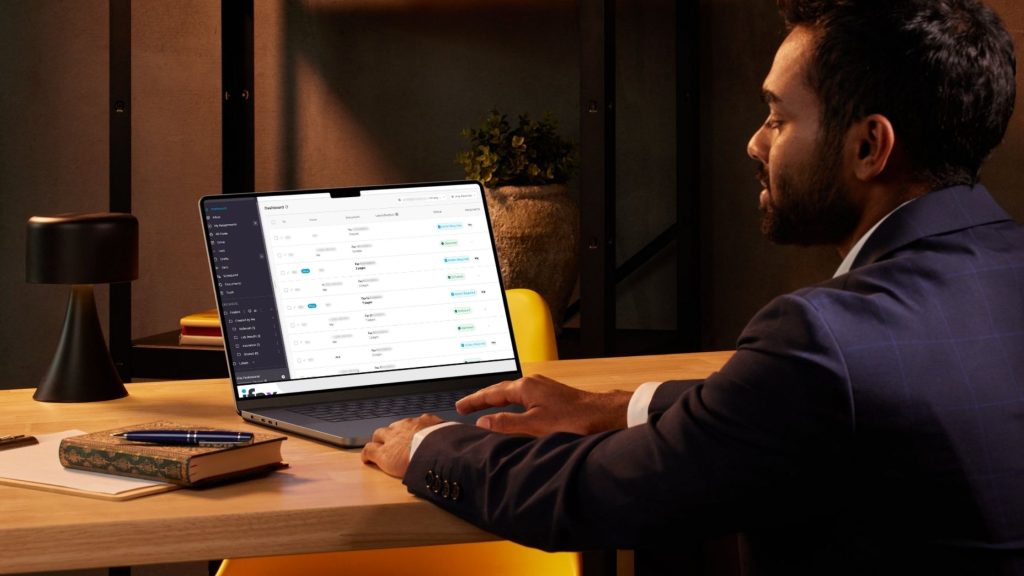
Using a dedicated fax app is the most reliable way to fax from MacBook if you send faxes regularly. These apps are designed specifically for macOS and offer better security, tracking, and document management.
Using iFax, a trusted online fax solution, here’s how to fax from MacBook or Mac computer step by step:
1. Download the app
Install the iFax app on your Mac. It also works on Windows, iOS, and Android, allowing you to access your faxes across multiple devices.
2. Click “New Fax”
Open the app and select New Fax. Import files directly from Finder, iCloud Drive, or other connected cloud storage services.
3. Enter recipient information
Input the recipient’s fax number, your name, and optional details such as your digital signature or company logo.
4. Add a cover page
Include notes, subject lines, or instructions to help the recipient quickly understand the document. You can also add the date to track the document timeline.
5. Review your fax
Double-check all details before sending. Since faxed documents often contain sensitive information, accuracy is essential.
6. Send and track delivery
Click Send. You’ll receive delivery status updates and confirmation, making it easy to track your fax from your MacBook or Mac computer.
This method is best for professionals and businesses that frequently need to send a fax from Mac with minimal effort and maximum reliability.
Read Further: Other Reliable Methods to Send a Fax Online
How to Send a Fax from Mac Using macOS Print (Print-to-Fax)
Some online fax services integrate with macOS printing, allowing you to send a fax from Mac directly from applications like Pages, Preview, or Microsoft Word.
How it works:
- Open the document on your Mac.
- Select File > Print.
- Choose the connected fax service from the printer or PDF options.
- Enter the recipient’s fax number.
- Send the fax.
This option is useful if you prefer faxing directly from your document editor without opening a separate fax interface.
Faxing from a Mac Using a Traditional Fax Machine (Limited Option)
You can still fax from a Mac by printing documents and sending them through a physical fax machine. However, this method requires:
- A fax machine
- A dedicated phone line
- Paper and toner
- Manual handling
Because of the added cost and complexity, this approach is becoming less practical compared to digital solutions.
How to Send a Fax from Mac for Free
While there are apps that allow you to fax from a Mac, many of them come with limitations or hidden costs. These apps often provide substandard services, such as poor-quality documents, slow service, and watermarks.
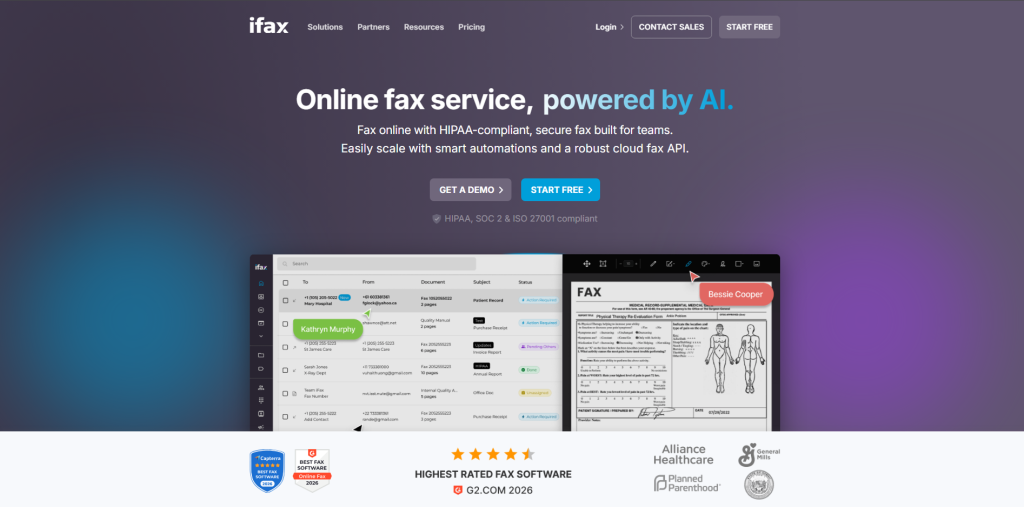
With iFax, you can sign up for a fax account and enjoy a free trial, giving you the opportunity to send faxes without immediate commitment.
To send a fax from your Mac, simply download the iFax app and follow the easy steps. Here’s why you should choose iFax:
- HIPAA-compliant fax service
- Simple and smooth with a rich suite of features
- Easy to use when you need to electronically sign forms and documents
- Automatically syncing and updating fax records across multiple devices
- Secure with 256-bit military-grade end-to-end encryption with GLBA compliance
Why Should I Use a Faxing App for Mac
Unless you have a fax machine in your office, sending a fax the traditional way is such a hassle. Firstly, you still need to go to an area near you that has it. Secondly, you need to wait for the materials needed to be replaced just in case it runs out.
So, it is very important to look for alternatives– online faxing as one. Apart from its convenience, here are some other reasons why you should start to send a fax from Mac:
Easy to Use and Convenient
Online faxing services are very user-friendly. Instructions are very straightforward and the steps are easy to learn and master. Moreover, it’s handy because as long as you have a Mac with an internet connection, you can send and receive faxes.
Safe and Secure
Most online faxing services are safe to use and secure. In fact, many industries that often handle sensitive information such as legal and medical documents use online faxing services instead of email.
Because unlike email, which can be hacked or forged, faxes are harder to fake. This is because faxes are more customized having elements like a signature. Moreover, faxes are harder to steal compared to printed faxes.
Documents are Well-Organized
If you begin to fax from Mac, all the sent and received faxes will always be accessible to you if you have the internet. You can also organize them and have a different folder for sent faxes and another folder for received faxes.
Saves Money and Space
Because online faxing doesn’t require you to print the documents, you can save money and space. You no longer have to buy tons of paper for printing faxes and you also don’t have to worry about space to allocate for the printed faxes.
Effortlessly Fax From Your Mac With iFax
Even in today’s digital age, faxing remains a crucial tool for business and legal communication. With iFax, you can send, receive, and sign faxes directly from your Mac or MacBook—all without a traditional fax machine or phone line.
Faxing on a Mac is fast, secure, and reliable, making it ideal for sending sensitive documents, contracts, or forms that require immediate attention. What used to take hours with a fax machine can now be done in minutes, right from your desktop.
With iFax, you can explore free fax or low-cost faxing options and see how simple it is to fax from Mac without any hassle. Don’t wait—start faxing from your Mac in seconds with iFax and experience the fastest, easiest way to send important documents today.