Learning how to fax from computer is useful if you need to send documents quickly, efficiently, and securely. Most people use online fax services or email-to-fax tools to complete the process.
How to send a fax from your computer
You can fax from a computer using an online fax service or email-to-fax tool. Upload a document, enter the recipient’s fax number, and send it through your browser or email without a fax machine or phone line.
Table of Contents
Can I Send a Fax from My Computer?
Yes, you can send a fax from your computer. In fact, many people search for solutions like “how to send a fax from my computer” because modern faxing methods make the process simple and fully digital, without having to use a fax machine.
Today, faxing from computer is possible for anyone with an Internet connection. Instead of the traditional method, you can send a fax from a computer using multiple methods.
You can fax from your computer by:
- Uploading a document from your computer
- Entering the recipient’s fax number
- Sending the fax online (through the Internet)
Whether you’re on a desktop or laptop, or using a web fax tool, the steps remain straightforward.
Fastest Ways to Fax From Computer
There are a few reliable ways to fax from a computer, but most users choose between online faxing or email faxing. Both options let you send documents digitally without needing a fax machine or landline.
The fastest options include:
- Online fax services: Send faxes directly from your browser by logging in to a web dashboard.
- Email-to-Fax: Attach your document to an email message and send it to a formatted fax number.
- Desktop fax software: Fax from PC or Mac by installing software that turns your computer into a digital fax machine.
For most users, online fax services like iFax are the quickest and simplest option because they require no setup and work instantly from any computer.
How to Fax from a Computer: Step-by-Step Methods
It doesn’t take an expert to send and receive faxes using a computer. All you need to do is choose the method that best suits your faxing needs.
Method 1: Fax Using an Online Fax Service
Online fax services are the fastest and most reliable way to fax from a computer. It skips the hassle of installing software or desktop apps. Faxing online offers a practical method, especially when you want to learn how to send a fax quickly, without the time-consuming installation or technical setup.
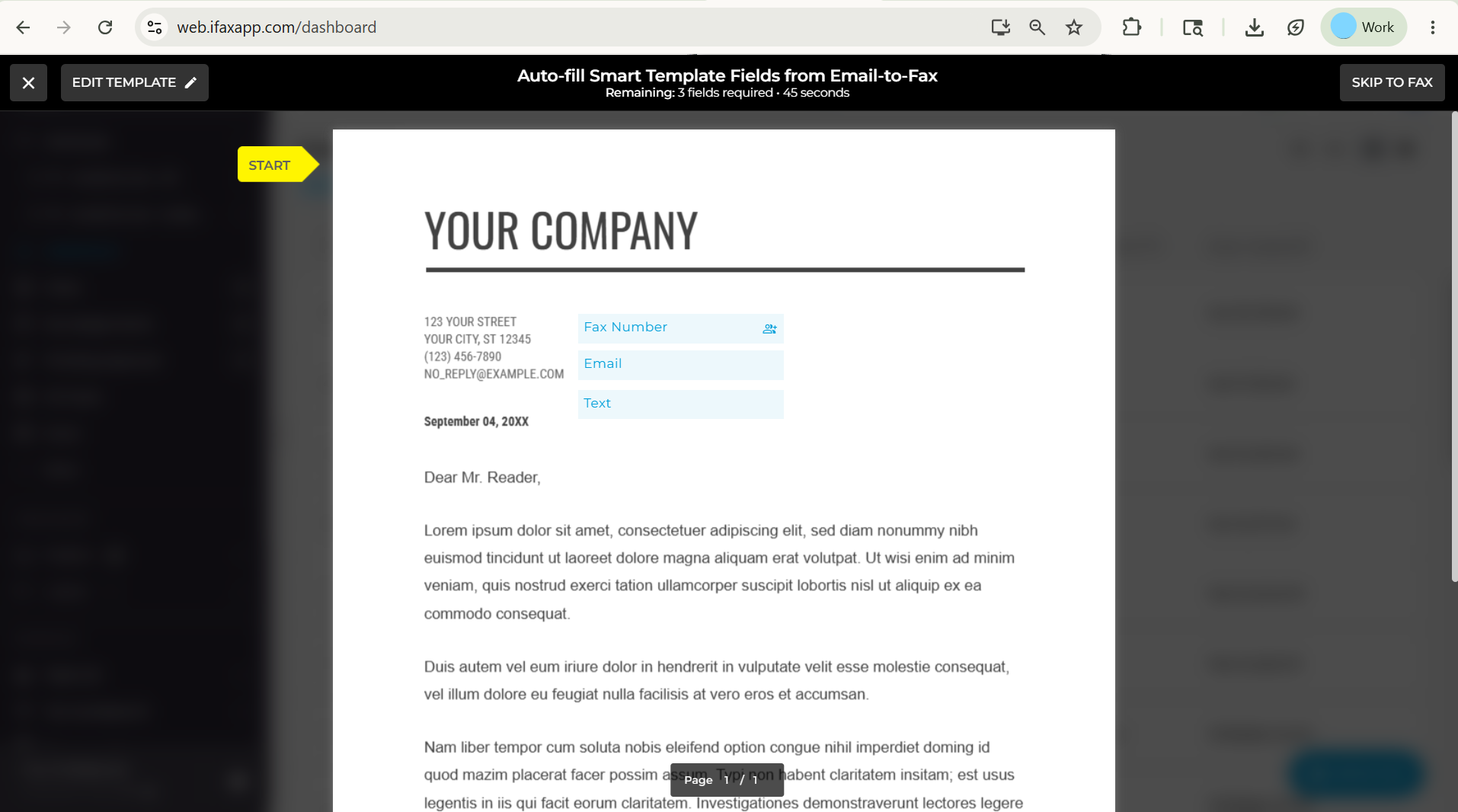
How to send a fax online using any computer
- Open your web browser and create an account with an online fax service (i.e., iFax).
- From the dashboard, click New Fax or Send Fax.
- Upload the document you want to fax from your computer.
- Enter the recipient’s fax number.
- Click Send to transmit the fax instantly.
The entire process takes place through a web app, making it the easiest option for anyone looking to quickly fax documents from a computer.
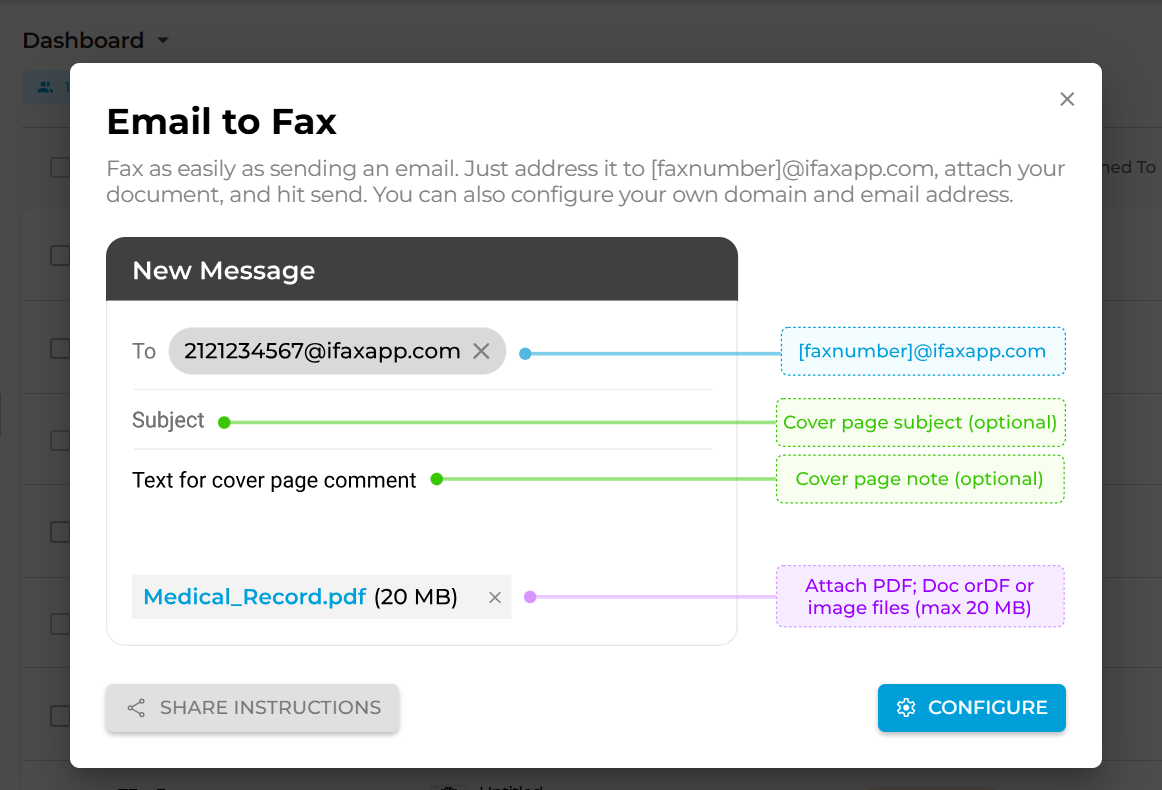
Method 2: Using Email-to-Fax Service
How do you fax from your computer directly from your email, such as Gmail or Outlook, without needing separate software? The answer is an email faxing service.
This method offers convenience to users and businesses that prefer to fax from PCs using tools they already use daily.
Can you fax from a computer using Gmail?
Yes, you can. Faxing from a computer using Gmail is not a problem as long as you use the iFax email-to-fax feature. From your email account, here’s how to send a fax from a computer using Gmail:
[Note: This process also works on Outlook, Yahoo! Mail, and other email services.]
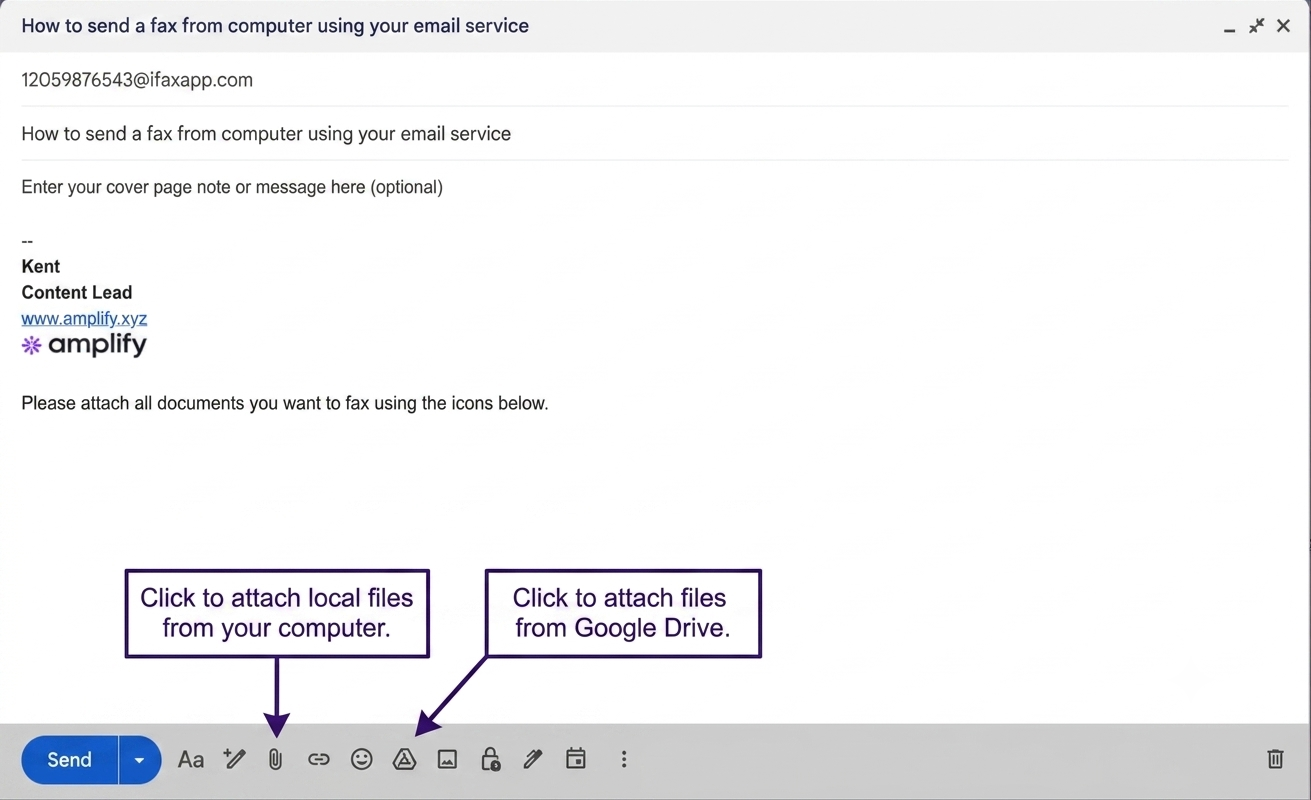
- In the “To” section of the compose window, enter the fax number followed by @ifaxapp.com. Make sure the number follows the correct format. Include the area and country code. Remove any unnecessary spaces and extra characters.
- Attach your documents. It’s the same as attaching files when sending regular emails.
- Click “Send,” then wait for the email confirmation of successful fax delivery. It’s that easy.
Sending a fax from your computer via email consolidates your documents and provides a better way to filter out spam. Faxing from Gmail, Outlook, and or other email clients also lets you schedule your fax messages.
Method 3: Fax from a Windows 11 or 10 Computer
If you’re using Windows 11 or 10, you can learn how to fax documents from your computer using a desktop software or app.
How to send a fax from your computer
- Download and install the iFax software (app) for Windows.
- Launch the app or run the software on your computer.
- Log in to the app using your existing account username and password. Otherwise, you’ll need to create an iFax account before you can send an efax.
- To send a fax, go to the left panel and click New Fax. Doing so should open the Compose window.
- Fill out the required fields. Make sure you enter the correct fax number.
- Attach a document by dragging and dropping the file from a local device folder. You can also select the documents manually by clicking the Add document button. If you click the three dots next to this button, you can remove the cover page and logo from the documents.
- Click Send. Wait for the pop-up notification confirming successful fax delivery.
If the idea of installing another piece of software doesn’t appeal to you, you can install a Print-to-Fax driver instead. This method lets you send faxes directly from any Windows application (e.g., MS Word) using the print (Ctrl+P) function.
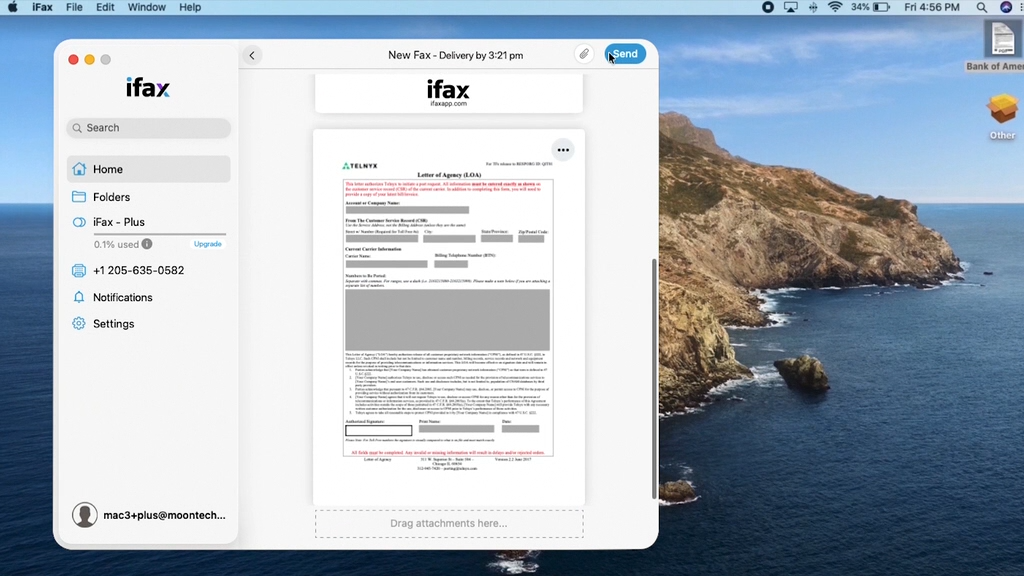
Method 4: Fax From a Mac
The best option for Mac users to fax on computer is either an online fax service or a faxing app. Since you already learned how to fax from a computer via a web browser (see Method 1), here’s how you can use your Mac for effortless faxing.
Using iFax for Mac, follow these steps:
- Install the iFax app from the Mac App Store.
- Open the app. Click New Fax, and attach the PDF, Word, or images you want to fax.
- Click Send. Your Mac will display a notification confirming the status of the fax transmission.
Detailed Guide: How to Easily Fax from a Mac
Setting up your computer for fax
If you’re wondering, “Can I fax from my computer without a phone line?” or if any steps are required before starting? The answer is you don’t need a landline or any fax line. You need an Internet connection.
Connect your computer to the Internet first, then follow these steps:
- Sign up for an iFax account or another online efaxing service that lets users send a fax from computers.
- Get a free fax number. You need a fax number to start receiving faxes without a phone line. (See: how to get a fax number using iFax)
The process should only take a couple of minutes, and you’re all set.

Can I Send a Fax from My Computer for Free
Yes. You’ll need a free online faxing service to send a fax from your computer without any charges. Free faxing is ideal for sending one-time faxes or for sending a few pages.
Keep in mind that sending a fax from your computer for free comes with limitations, such as daily page limits and watermarks on cover pages. If you’re looking for a cheap efax option, iFax provides an affordable and hassle-free way to send faxes without additional setup fees.
With iFax, you can fax from a computer via browser, email, or desktop. Its API and Zapier integrations also let you fax from existing software systems, further streamlining your fax workflows.
How much does it cost to send a fax from my computer
The cost of sending a fax from your computer depends on the method and service provider you choose. Most online fax services charge either a monthly subscription fee or a per-page rate for sending and receiving faxes.
Some providers offer free faxing with limited usage. For example, iFax can fax up to 200 pages to any local or international recipient for less than a dollar per page. That’s up to 97% cheaper than faxing at a local FedEx, Staples, or UPS.
Key Takeaway
Faxing from a computer is now a fully digital process that replaces traditional fax machines with online tools and email-based workflows.
Whether you need to send a fax from a computer or any device, modern methods make it easy to complete the process quickly and securely in just a few simple steps.
How to Send Fax from Computer (Frequently Asked Questions)
How do I know if my computer is compatible with an online fax service
Most online fax services work on Windows, macOS, and Linux, and are easily accessible using any modern web browser. No special hardware or software is usually required.
Just ensure you have an Internet connection and check the provider’s system requirements for any specific limitations.
Can I fax from my laptop?
Yes. Like faxing from a computer, you can learn how to fax documents from a laptop quickly. Compared to desktop faxing, it offers more flexibility.
It’s more convenient than faxing from a desktop computer since you can take your laptop with you wherever you go. Even if you’re going on vacation or an overseas trip, you can still send and receive faxes. It’s like having a portable fax machine. The best part? Just install iFax for Windows on both devices, and it will automatically sync your fax documents.
If faxing from a computer or laptop isn’t enough, you can also use your mobile phone or tablet. With mobile faxing, you can transmit important documents from anywhere and even sign them using your smartphone.
Can you fax from a computer without a phone line?
Yes, you can. One of the best things about faxing from a computer is that it doesn’t require a telephone line. There’s no need for a fax machine, phone service, or any plug-in device. All you need is your computer and a stable Internet connection.
There’s no need to pay for a monthly phone service. Plus, faxing from a computer is hassle-free since you no longer need to clean the scanner bed, maintain the parts, or refill the fax machine’s ink supply.
Are there security risks when sending a fax from my computer?
Yes. Any time you transmit sensitive documents over the Internet, there is a potential security risk, such as interception or unauthorized access.
However, using a secure online fax service that applies end-to-end encryption during transmission and storage significantly reduces these risks.
Services like iFax use advanced AES encryption and comply with data protection standards such as HIPAA and GLBA, so each document you send as a fax from your computer remains securely protected.